 doDev – Admin & Dev Toolkit for Salesforce
How to see who can access a record in Salesforce – and why
Short answer: in Salesforce you can check one user at a time (the record’s Sharing Hierarchy, or a query on UserRecordAccess), but there is no list of everyone with access and the reason for each. doDev, a free Chrome extension, lists every person who can open the record, their access level and why.
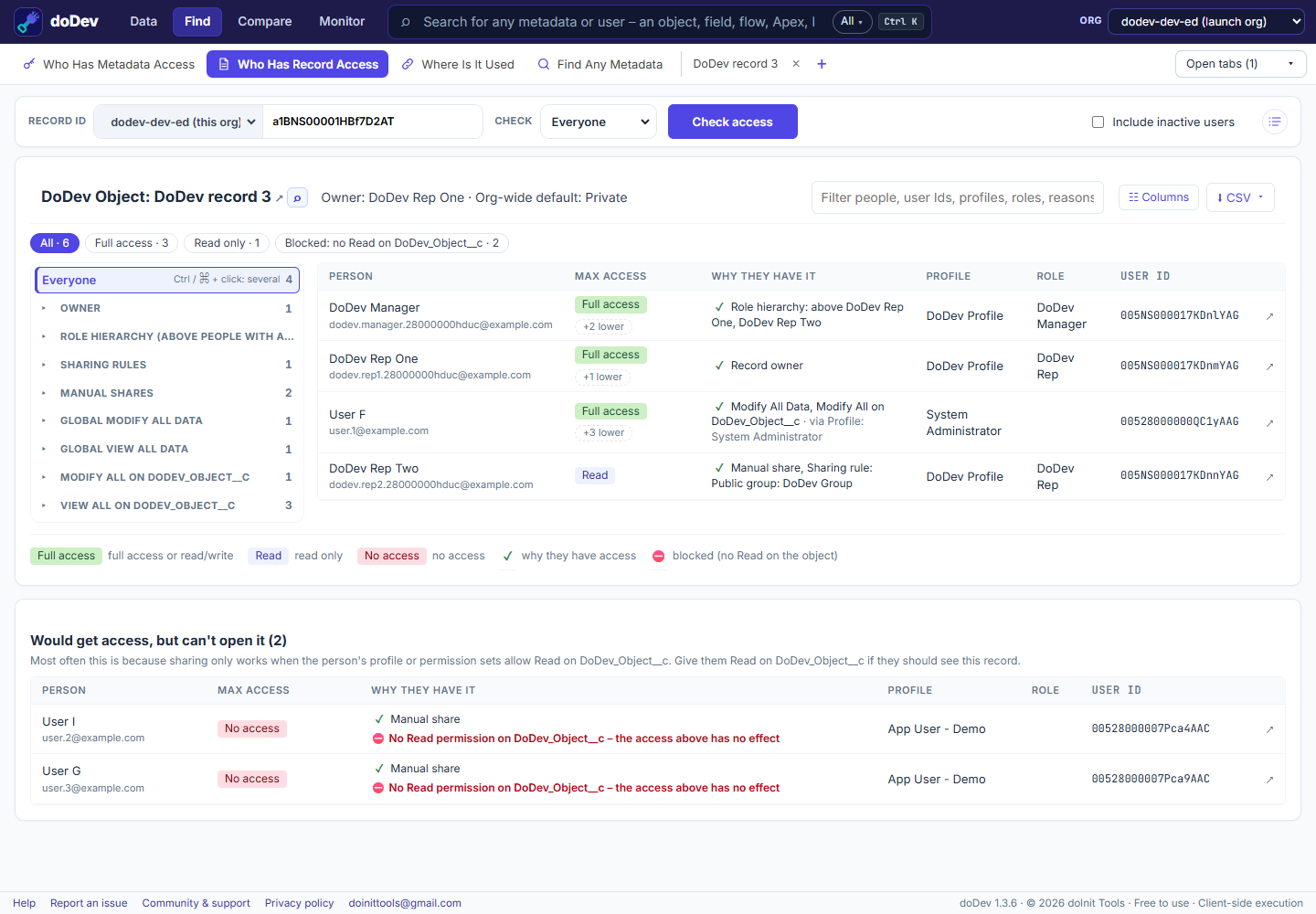
Check it with doDev
- Install doDev and open it from the toolbar while you are logged into Salesforce.
- Go to Find → Who Has Record Access.
- Paste the record ID (15 or 18 characters) and leave Check on Everyone.
- Click Check access.
You get:
- Everyone with access and their highest access – Full access, Read/Write or Read only.
- Why they have it – owner, role hierarchy, sharing rules, manual shares, teams, territories, View All or Modify All on the object, global View All Data or Modify All Data, or the parent record.
- Pills to filter: Full access, Read/Write, Read only, Blocked – click one or several.
- Blocked people – shared the record, but their profile and permission sets don’t allow Read on the object, so the share has no effect. This is one of the most common reasons a user “should” see a record but can’t.
- Specific users instead of Everyone to put a few people side by side.
Why a user can’t see a record
- No Read on the object – sharing never overrides object permissions. Give Read through a permission set.
- Org-wide default is Private and nothing shares the record with them: they are not the owner, not above the owner in the role hierarchy, and no sharing rule, team or manual share includes them.
- Controlled by parent – for a detail record, the access comes from the parent record.
More how-to guides: all guides · doDev help