 doDev – Admin & Dev Toolkit for Salesforce
How to see who has access to a field in Salesforce
Short answer: field-level security in Setup shows the field’s access per profile only. Permission sets and permission set groups are not on that page, so you can’t see from it which users can read or edit the field. doDev, a free Chrome extension, lists every user with access and what gives it to them.
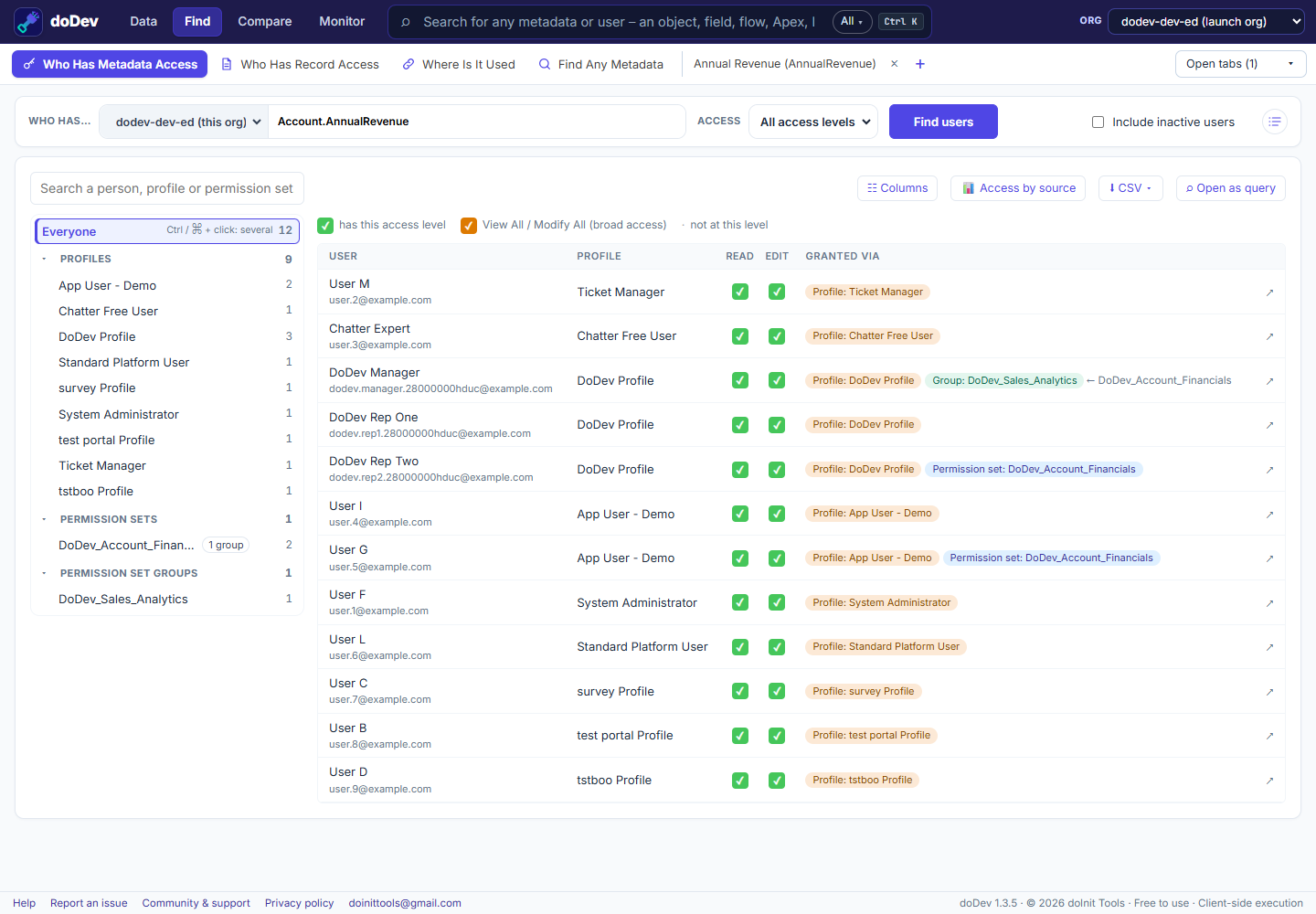
Find them with doDev
- Install doDev and open it from the toolbar while you are logged into Salesforce.
- Go to Find → Who Has Metadata Access.
- Type the object and a dot, e.g.
Account., and pick the field (e.g. Annual Revenue). - Leave Access on All access levels (or pick Read or Edit only) and click Find users.
You get:
- Every user with a ✓ for Read and Edit.
- Granted via – the profile, permission set or permission set group behind each user’s access. A group also shows the permission set inside it that carries the access.
- A tree on the left with Profiles, Permission sets and Permission set groups, each with a head count. Click one to see just its users.
- 📊 Access by source – a chart of how many people each profile or permission set gives Read or Edit.
- ⬇ CSV, and ☷ Columns to add any user field, such as Email or Department.
Doing it without a tool
- Setup → Object Manager → the object → Fields & Relationships → the field → Set Field-Level Security shows the profiles only.
- For permission sets, query the
FieldPermissionsobject, for exampleSELECT Parent.Label, PermissionsRead, PermissionsEdit FROM FieldPermissions WHERE Field = 'Account.AnnualRevenue'and then look up who is assigned to each permission set inPermissionSetAssignment.
Common questions
Does field access mean they can see every record? No. Field access says whether a user can see the field at all; record sharing decides which records. See who can see a record.
Does it include inactive users? Only if you check Include inactive users.
More how-to guides: all guides · doDev help