 doDev – Admin & Dev Toolkit for Salesforce
How to compare a permission set between Salesforce sandbox and production
The situation: you deployed a permission set and want to be sure production now matches the sandbox – or you inherited an org and want to know how far the two have drifted. Field permissions are the usual gap: they only deploy for fields included in the same deployment. doDev, a free Chrome extension, compares the permission set in both orgs and lists every difference.
Compare it with doDev
- Install doDev and log into both orgs in the same browser.
- Open doDev and go to Compare → Permissions.
- Pick the sandbox and the permission set in the first box, production and the same permission set in the second.
- Click Compare.
You get:
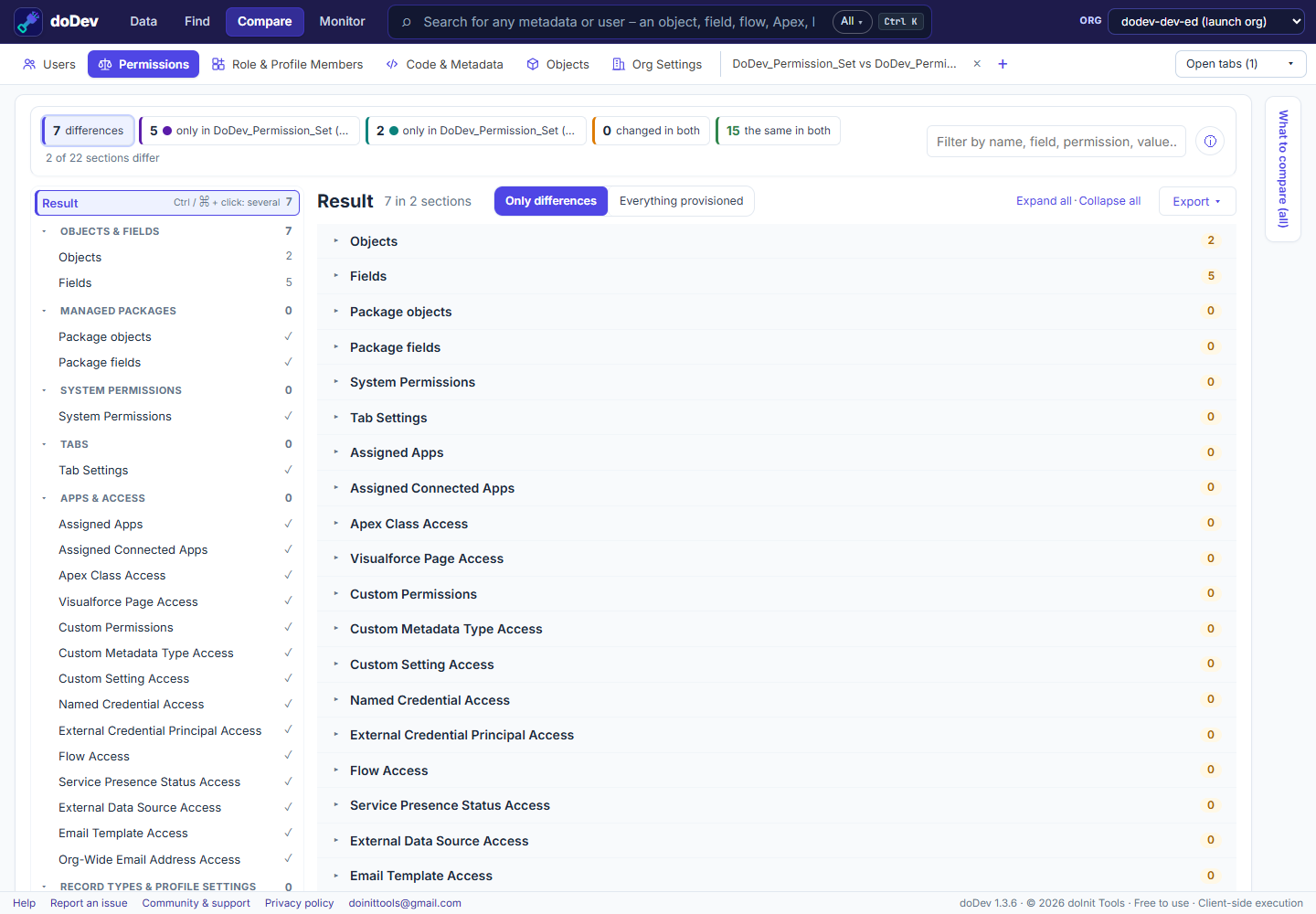
- What differs – only in the sandbox, only in production, changed in both – by section.
- Every section, the identical ones too – objects, fields, system permissions, tabs, apps, connected apps, Apex, Visualforce, custom permissions, custom metadata and settings, named credentials, flows – so you can see the whole permission set was checked, not only the parts that differ.
- Objects and fields as a grid, one column per permission, with the field differences one click away.
- Export → gap permission set – a deployable file that grants production what the sandbox has. Deploy it with your usual tool.
A quick post-deployment check
- Compare the permission set right after the deployment.
- Look at Fields first – new fields without their field permissions are the most common miss.
- Then Apex Class Access and Custom Permissions – classes and custom permissions added in the release.
- Export the CSV for the release notes.
Related: compare a profile between two orgs · compare Apex and metadata between orgs · compare permission set groups
More how-to guides: all guides · doDev help