 doDev – Admin & Dev Toolkit for Salesforce
How to compare a profile with a permission set in Salesforce
The situation: Salesforce recommends keeping profiles minimal and granting access through permission sets and permission set groups. To move a profile’s permissions into a permission set, you first need to know exactly what the profile grants that the permission set doesn’t. Salesforce can’t put a profile and a permission set side by side. doDev, a free Chrome extension, can.
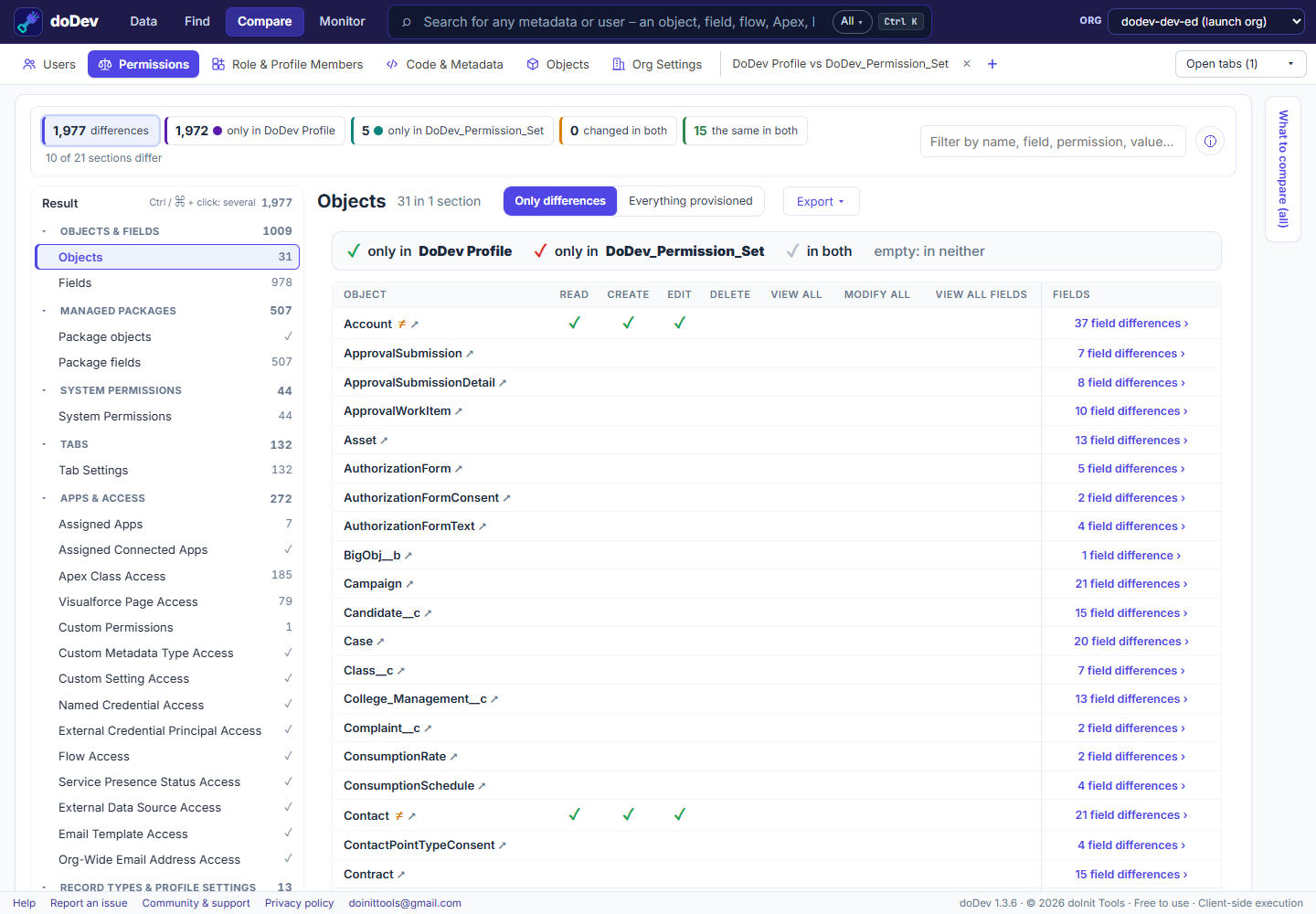
Compare them with doDev
- Install doDev and open it from the toolbar while you are logged into Salesforce.
- Go to Compare → Permissions.
- Pick the profile in the first box and the permission set in the second (a permission set group works too).
- Click Compare.
You get:
- Objects and fields – a green ✓ for what only the profile grants, a red ✓ for what only the permission set grants, grey for both.
- System permissions, tabs, apps, connected apps, Apex classes, Visualforce pages, custom permissions and the other sections both can hold.
- Export → gap permission set – Make the permission set match the profile downloads a deployable permission set with everything the profile grants and the permission set lacks. Deploy it with your usual tool, assign it, and the profile can be slimmed down.
What is not compared
Some settings exist only on profiles and can’t move to a permission set, so doDev leaves them out of a profile-vs-permission-set comparison and says so: page layout assignments, the default app, default record types, login IP ranges, login hours and the user licence.
Doing it without a tool
Open the profile and the permission set in Setup and walk through each section, or retrieve both with the Salesforce CLI and compare the .profile-meta.xml and .permissionset-meta.xml files – the two formats differ, so they don’t diff cleanly.
Related: compare two profiles or permission sets · compare permission set groups · see everything a user can access
More how-to guides: all guides · doDev help