 doDev – Admin & Dev Toolkit for Salesforce
How to compare permission set groups in Salesforce
The situation: permission set groups bundle permission sets for a job – Sales Rep, Sales Manager. Over time two groups for similar roles overlap or drift, and muting permission sets make it harder still to say what a group really grants. Salesforce shows a group’s combined permissions one group at a time. doDev, a free Chrome extension, compares two or more groups side by side.
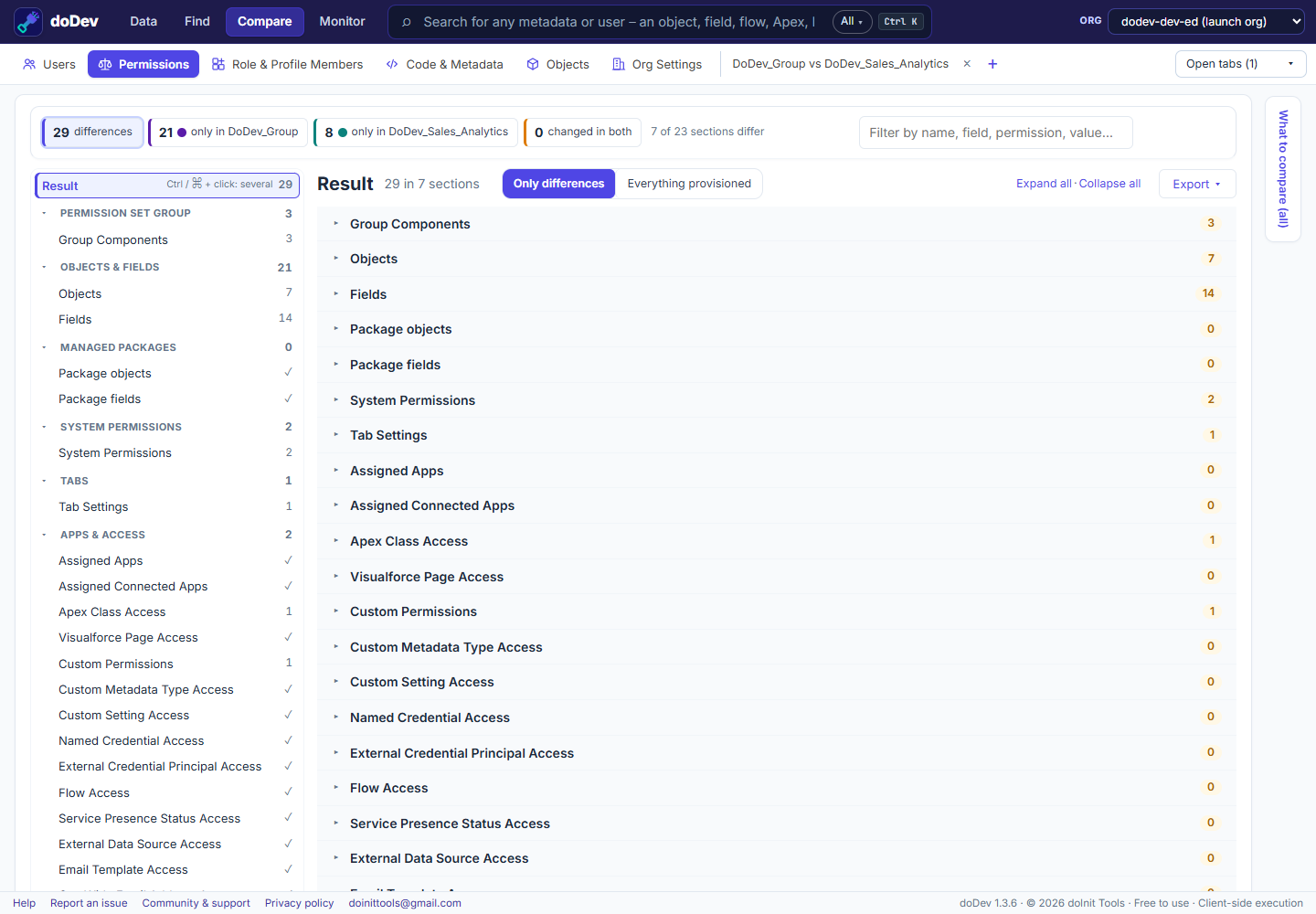
Compare them with doDev
- Install doDev and open it from the toolbar while you are logged into Salesforce.
- Go to Compare → Permissions.
- Pick two to five permission set groups – from one org, or the same group in two orgs.
- Click Compare.
You get:
- Group components – the permission sets (and muting permission sets) in each group.
- The combined permissions after muting – Salesforce’s calculated permissions for the group, so a muted permission doesn’t show as granted.
- Every section – objects, fields, system permissions, tabs, apps, connected apps, Apex, Visualforce, custom permissions and more – with ✓ where the groups agree.
- Export – CSV or Excel, or a gap permission set.
You can also compare a group with a single permission set or a profile – e.g. to check that a new group covers everything an old profile granted.
Good to know
Record type visibility is not part of a group’s calculated permissions, so doDev reads it from the member permission sets (without muting).
Related: compare two profiles or permission sets · compare a profile with a permission set · who has access to a field – including through groups
More how-to guides: all guides · doDev help