 doDev – Admin & Dev Toolkit for Salesforce
What do all users in a Salesforce role or profile have – and who is different?
Short answer: people in the same role or profile drift apart over time – one gets an extra permission set, another misses one. Salesforce lists the users of a profile, but not what they hold beyond it. doDev, a free Chrome extension, builds a matrix of everyone in the role or profile and what they hold.
Check it with doDev
- Install doDev and open it from the toolbar while you are logged into Salesforce.
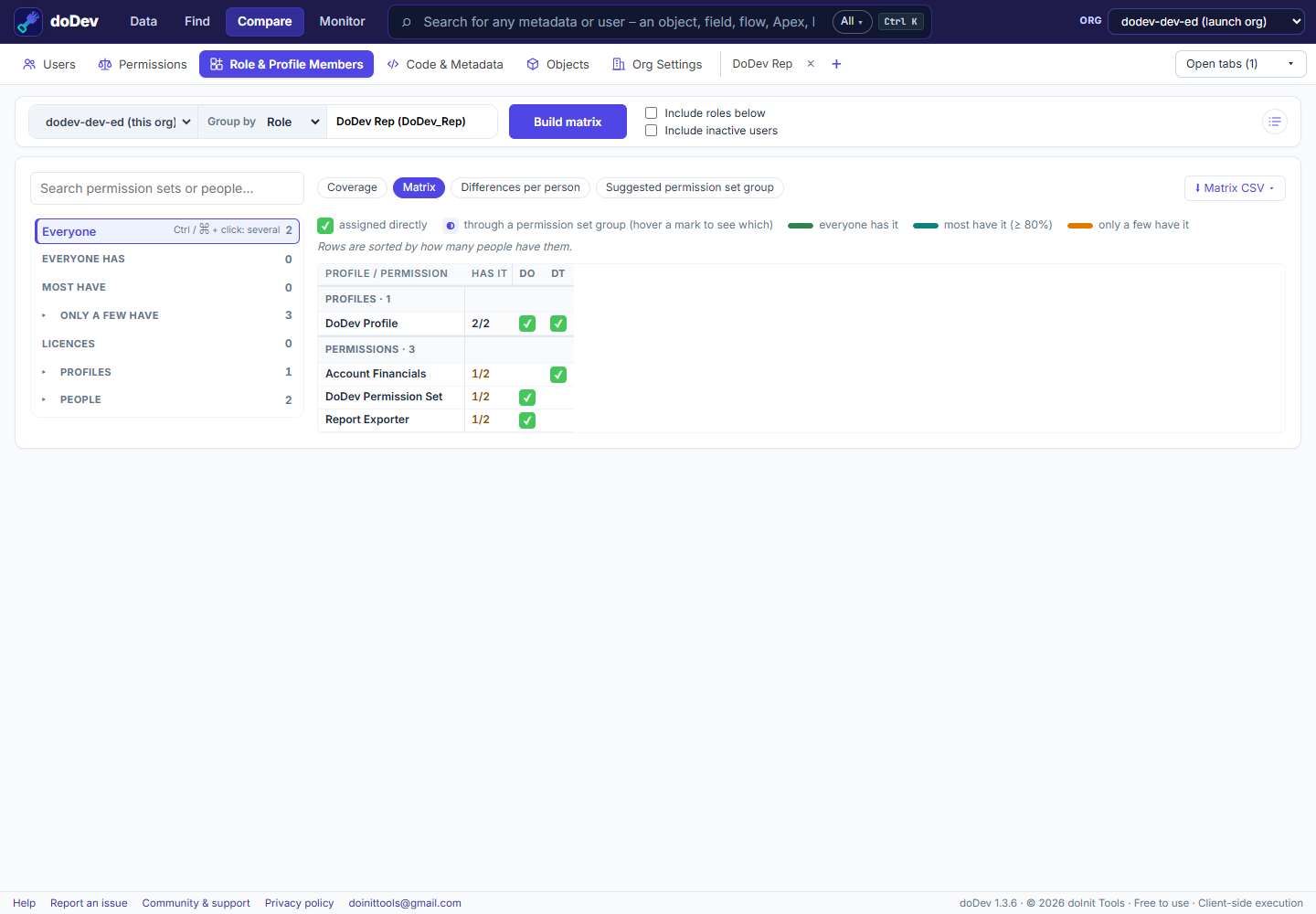
- Go to Compare → Role & Profile Members.
- Pick a role (optionally with the roles below it) or a profile.
- Click Build matrix.
You get:
- Everyone has / Most have / Only a few have – the permission sets, groups and licences, by how many people hold them.
- People – those who differ from the rest first. Click a permission set to see who has it and who is missing it, or a person to see what they’re missing.
- Matrix – profiles first, then permission sets, groups and licences, one column per person.
- Suggested permission set group – what everyone in the role should share, with a deployable file and an assignment plan.
Doing it without a tool
Setup → Profiles → the profile → View Users lists the people; for each one you open their permission set assignments. A query on PermissionSetAssignment filtered by Assignee.ProfileId or Assignee.UserRoleId gives the raw list to pivot in a spreadsheet.
More how-to guides: all guides · doDev help