 doDev – Admin & Dev Toolkit for Salesforce
How to compare a user in two Salesforce orgs
The situation: “It worked in UAT.” A tester could do something in the sandbox, but the same person can’t in production. Their access is the sum of a profile, permission sets, permission set groups, licences and more – in two orgs. Salesforce can’t compare a user across orgs. doDev, a free Chrome extension, puts the two side by side.
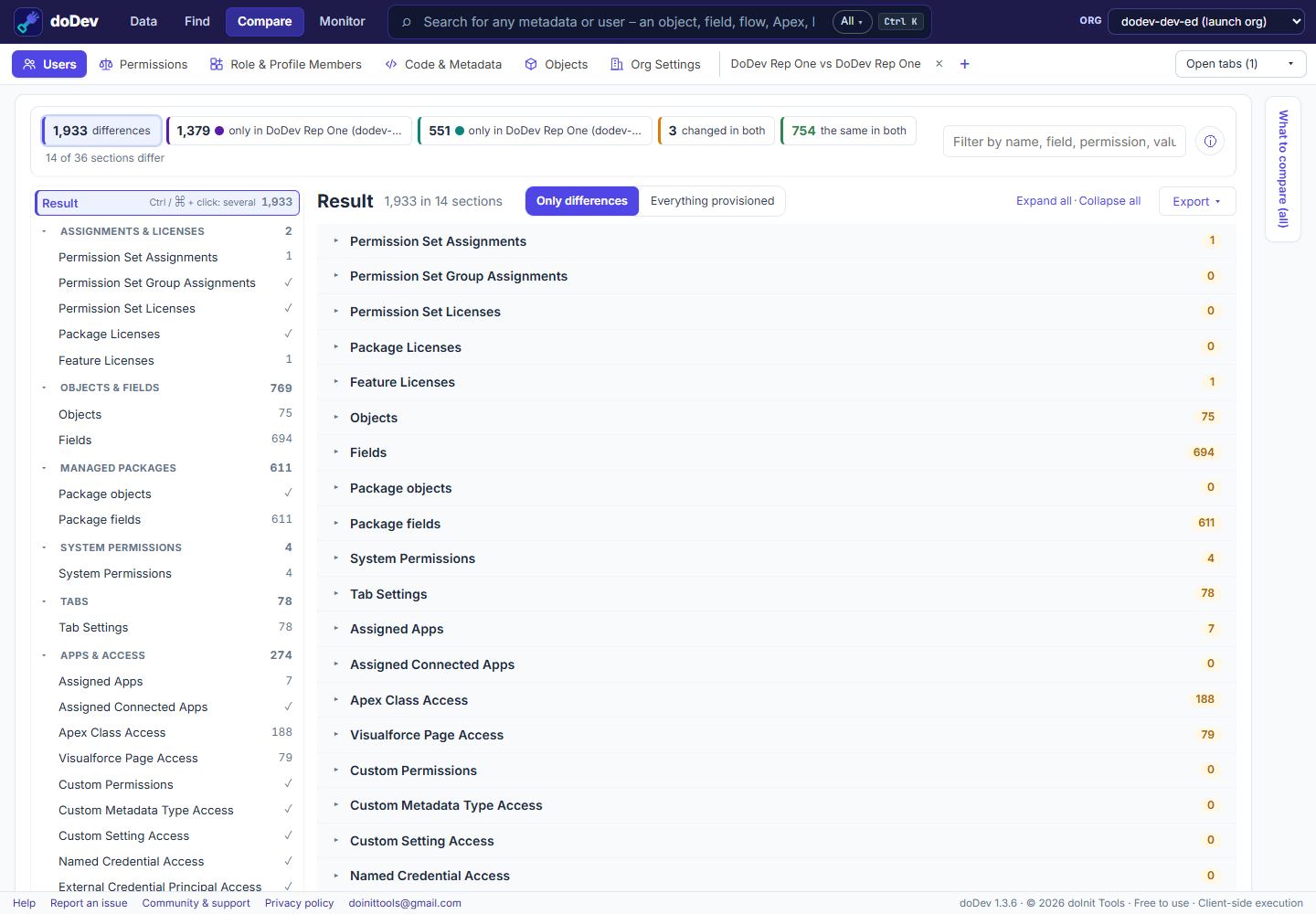
Compare the user across orgs with doDev
- Install doDev and log into both orgs in the same browser.
- Open doDev and go to Compare → Users.
- In the first box pick the first org and the user; in the second box pick the other org and the same person. (Sandbox usernames usually carry a suffix such as
.uat– search by name.) - Click Compare.
You get:
- Assignments and licences – permission sets, permission set groups, permission set licences, package and feature licences in each org.
- Every permission, combined from the profile, permission sets and groups – objects, fields, system permissions, tabs, apps, Apex, pages, custom permissions and more.
- Via what – each difference says which profile, permission set or group grants it, in which org.
- Groups, queues, teams, territories, the role path and the user record – e.g. a different role or a missing public group explains a sharing difference.
- Export – CSV or Excel, or a gap permission set with what the user has in one org and lacks in the other.
Common causes
- A permission set assigned in the sandbox but never in production (assignments are data, not metadata – they don’t deploy).
- A permission set licence available in one org only.
- The profile itself differs between the orgs – see compare a profile between two orgs.
Related: compare two users in one org · see everything a user can access
More how-to guides: all guides · doDev help