 doDev – Admin & Dev Toolkit for Salesforce
How to import, update or delete Salesforce records from a CSV or Excel
Short answer: the Data Import Wizard covers a limited set of objects and can’t delete, and Data Loader is a desktop application to install. doDev, a free Chrome extension, loads, updates or deletes records of any object from a CSV file or rows pasted from Excel – and shows the rows that will likely fail before anything is sent.
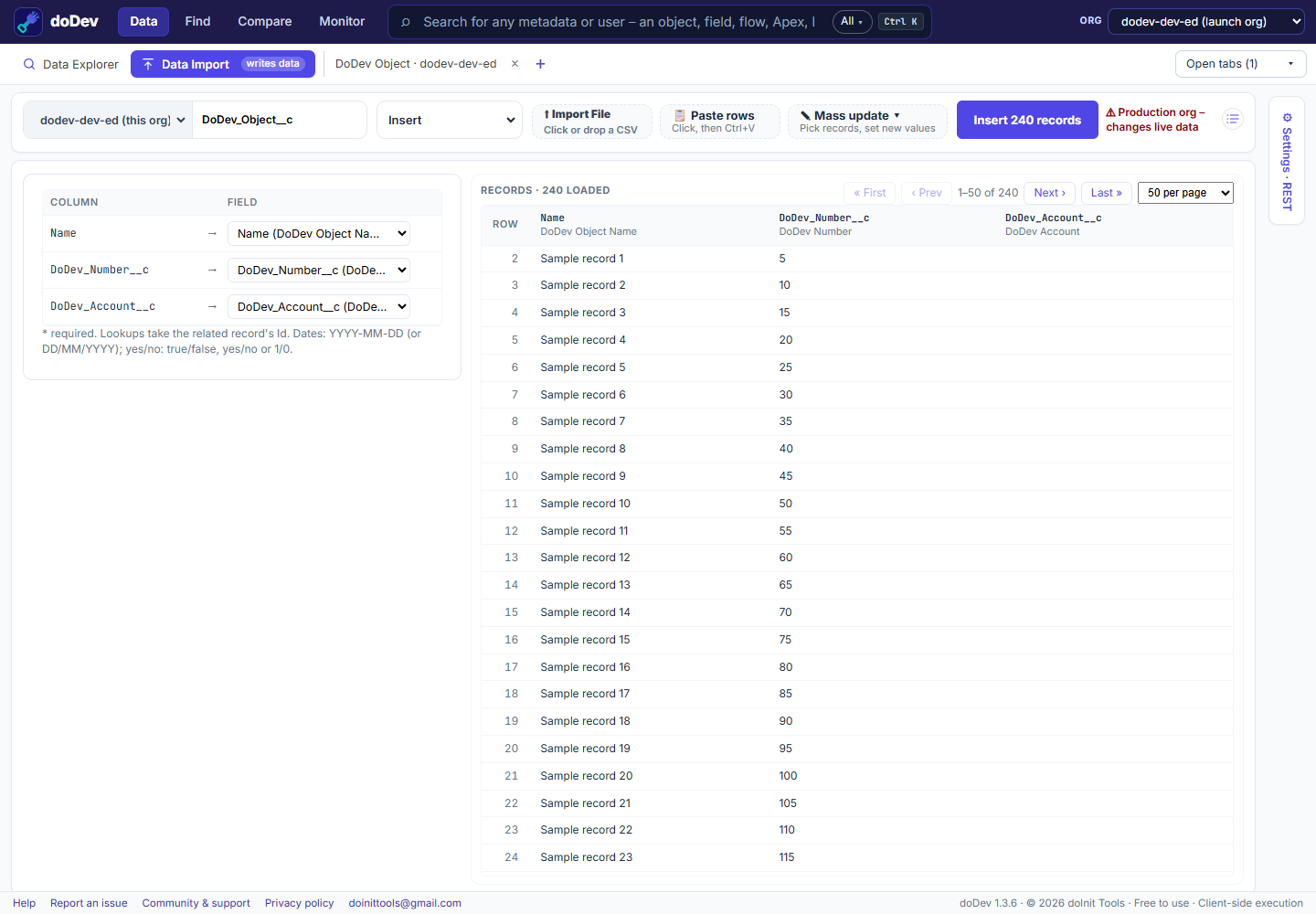
Load records with doDev
- Install doDev and open it from the toolbar while you are logged into Salesforce.
- Go to Data → Data Import.
- Pick the object and the Operation – Insert, Update (by Id), Upsert (by an external Id), Delete or Hard delete.
- Bring the records: ⬆ Import file (or drop a CSV), 📋 Paste rows (Ctrl+V straight from Excel or Google Sheets), or ✎ Mass update – pick records from a query, list view, report or pasted Ids and give a field one new value.
- Check the mapping (columns to fields – matched by name) and the rows marked Possible error: missing required fields, unknown picklist values, bad dates.
- Click the run button, e.g. Update 450 records. Results appear as each batch finishes; ⬇ Results CSV has every row’s Id or error.
⚙ Settings (as in Data Loader): REST, Bulk API or Bulk API 2.0, batch size, the date format in your file, whether blank cells clear a field, serial mode and assignment rules.
Doing it without a tool
- Data Import Wizard (Setup) – accounts, contacts, leads, solutions, campaign members and custom objects, up to 50,000 records; no delete.
- Data Loader – Salesforce’s desktop application: every object and operation, but it has to be installed and kept up to date.
Common questions
Can I undo an import? No tool can. Deleted records go to the Recycle Bin for 15 days (hard-deleted ones don’t). Keep your file and the results CSV.
Does it warn me on production? Yes – a production org gets a warning next to the run button.
More how-to guides: all guides · doDev help