 doDev – Admin & Dev Toolkit for Salesforce
How to find users with a system permission in Salesforce
Short answer: Salesforce has no Setup page that lists the users holding a system permission such as Export Reports, Modify All Data or View All Data. You have to check every profile and permission set, or query the permission fields yourself. doDev, a free Chrome extension, lists the users and where each one gets the permission.
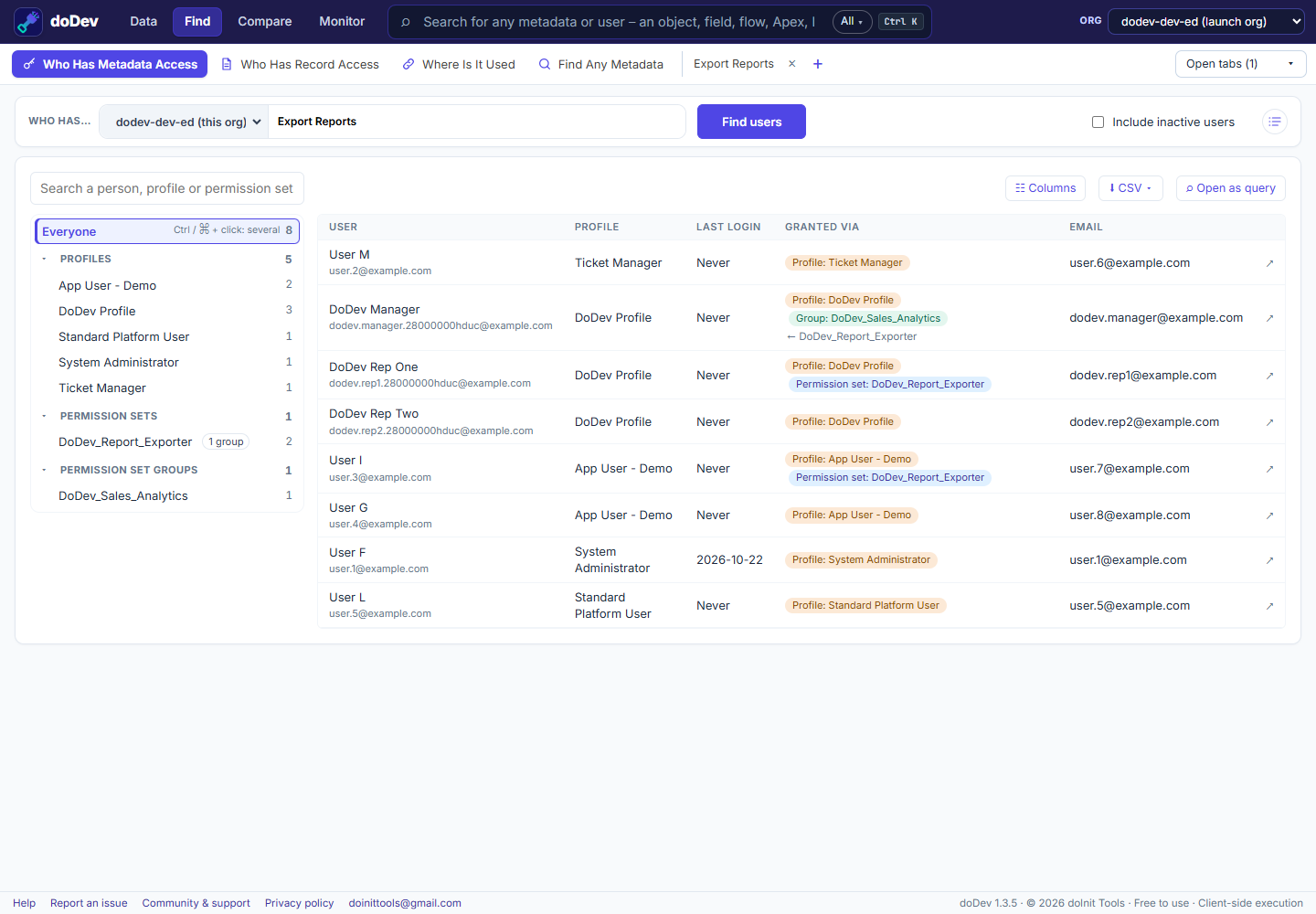
Find them with doDev
- Install doDev and open it from the toolbar while you are logged into Salesforce.
- Go to Find → Who Has Metadata Access.
- Type the permission’s name, e.g. Export Reports, and pick it.
- Click Find users.
You get every user with the permission, and under Granted via the profile, permission set or permission set group that gives it. The tree on the left groups them by Profiles, Permission sets and Permission set groups. A permission set that sits in groups shows a 2 groups button that lists those groups.
The same search works for objects, fields, Apex classes, Visualforce pages, custom permissions, apps, connected apps and flows.
Good permissions to review regularly
- Export Reports – who can take data out of the org as a file.
- Modify All Data and View All Data – who can see or change every record, whatever the sharing.
- Manage Users, Customize Application and Author Apex – who can change the org itself.
Doing it without a tool
Each system permission is a field on PermissionSet (profiles have one too). For example:
SELECT Assignee.Name, PermissionSet.Label, PermissionSet.IsOwnedByProfile FROM PermissionSetAssignment WHERE PermissionSet.PermissionsExportReport = true AND Assignee.IsActive = true
This covers profiles and permission sets. Permission set groups need a second look, because their permissions come from the sets inside them.
More how-to guides: all guides · doDev help