 doDev – Admin & Dev Toolkit for Salesforce
How to monitor scheduled and failed Apex jobs in Salesforce
Short answer: Setup splits jobs across two pages – Scheduled Jobs (what is scheduled) and Apex Jobs (each run) – and neither shows a job’s history at a glance. doDev, a free Chrome extension, shows every job with its recent runs, failures and next run.
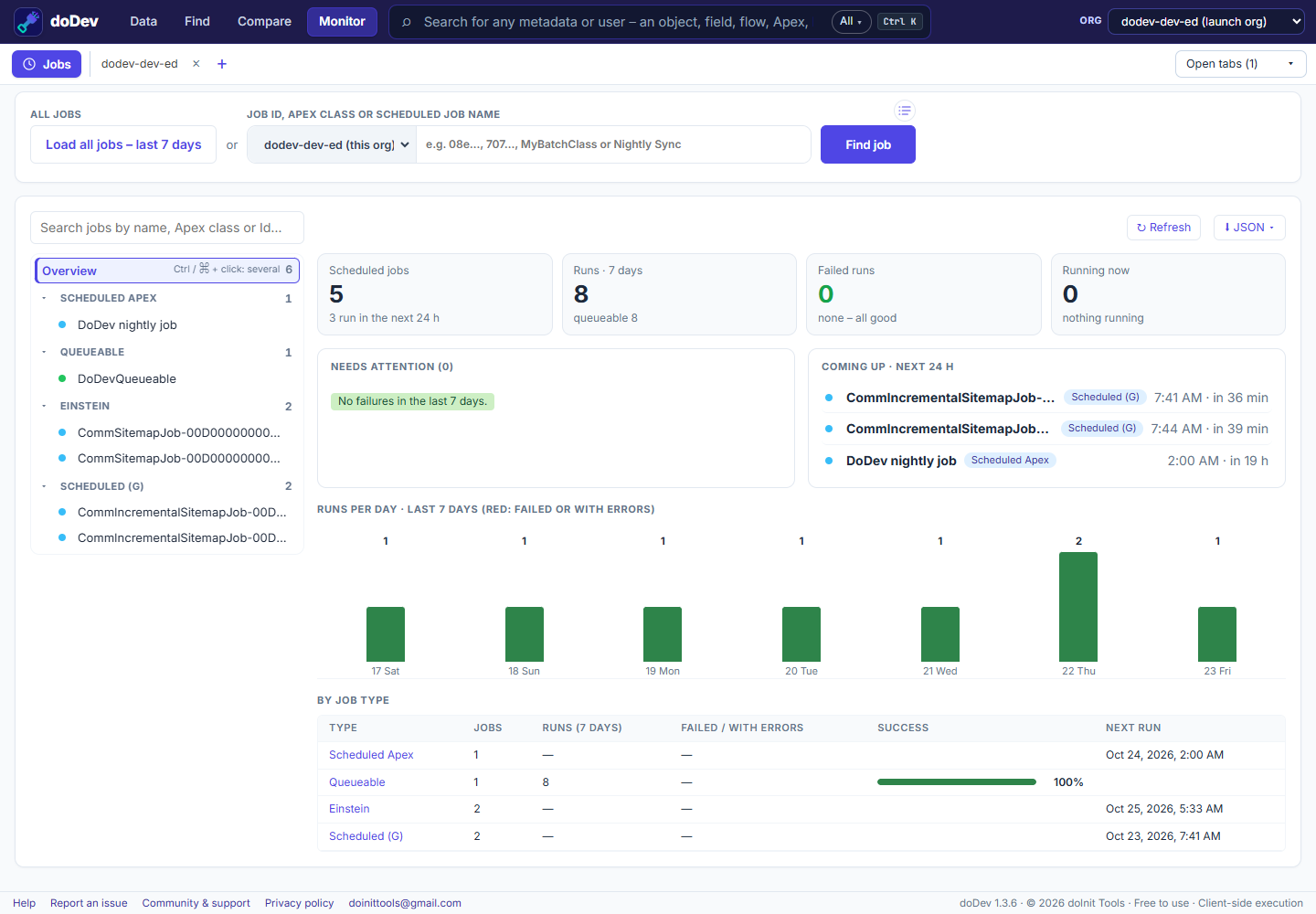
Check them with doDev
- Install doDev and open it from the toolbar while you are logged into Salesforce.
- Go to Monitor → Jobs.
- Click Load all jobs – last 7 days, or type a job Id, an Apex class or a scheduled job name and press Enter to go straight to one job.
You get:
- Overview – scheduled jobs, runs in 7 days, failed runs, what is running now, Needs attention (failures, worst first) and Coming up in the next 24 hours.
- Every job by type – Scheduled, Batch, Queueable and Future Apex, scheduled flows – with a dot for how it is doing and a 7-day grid of results.
- A job’s page – the schedule in words (with its cron expression), a countdown to the next run, each run as a bar, and the latest error with Salesforce’s full message.
- Times in your Salesforce time zone.
Doing it without a tool
- Setup → Scheduled Jobs – what is scheduled and the next run.
- Setup → Apex Jobs – each run, its status and the first error.
- SOQL –
SELECT ApexClass.Name, JobType, Status, NumberOfErrors, ExtendedStatus, CreatedDate FROM AsyncApexJob WHERE CreatedDate = LAST_N_DAYS:7.
More how-to guides: all guides · doDev help