 doDev – Admin & Dev Toolkit for Salesforce
How to compare two users in Salesforce – why can one do what another can’t?
Short answer: two users with the same job title often have different access, because it adds up from a profile, several permission sets and permission set groups – plus licences, public groups, queues and the role. Salesforce has no side-by-side view of two users. doDev, a free Chrome extension, compares them and says what grants each difference.
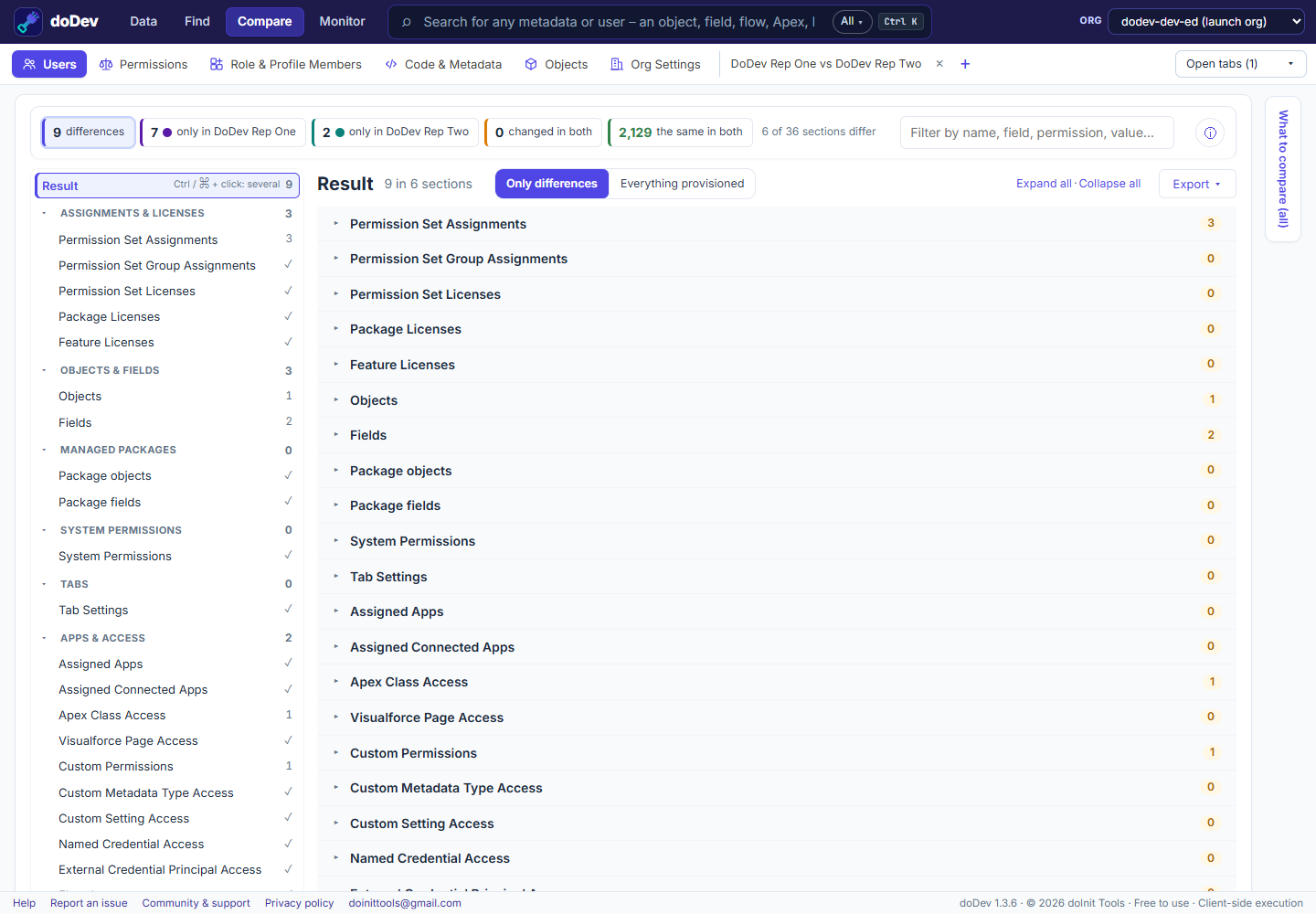
Compare them with doDev
- Install doDev and open it from the toolbar while you are logged into Salesforce.
- Go to Compare → Users.
- Pick 2 to 5 users – from one org, or the same person in a sandbox and production.
- Click Compare.
You get:
- Every permission – objects, fields, system and app permissions, Apex, pages, tabs, custom permissions – combined from each user’s profile, permission sets and groups.
- Which profile, permission set or group grants it, for every difference.
- The rest of the picture – permission set assignments, licences, public groups, queues, teams, territories, the role path and the user record itself.
- Export to CSV or Excel, or a deployable gap permission set that gives one user what the other has.
Doing it without a tool
Open both users’ records, note their profile and every permission set and group, and compare those one by one in Setup – or query PermissionSetAssignment for each user and diff the permissions yourself.
Related: compare a user in two Salesforce orgs · see everything a user can access · role and profile members
More how-to guides: all guides · doDev help