 doDev – Admin & Dev Toolkit for Salesforce
How to compare a Salesforce object between two orgs
Short answer: to check whether an object is the same in a sandbox and production, you open it in Object Manager in both orgs and compare field by field. doDev, a free Chrome extension, compares the whole object in one go and highlights what differs.
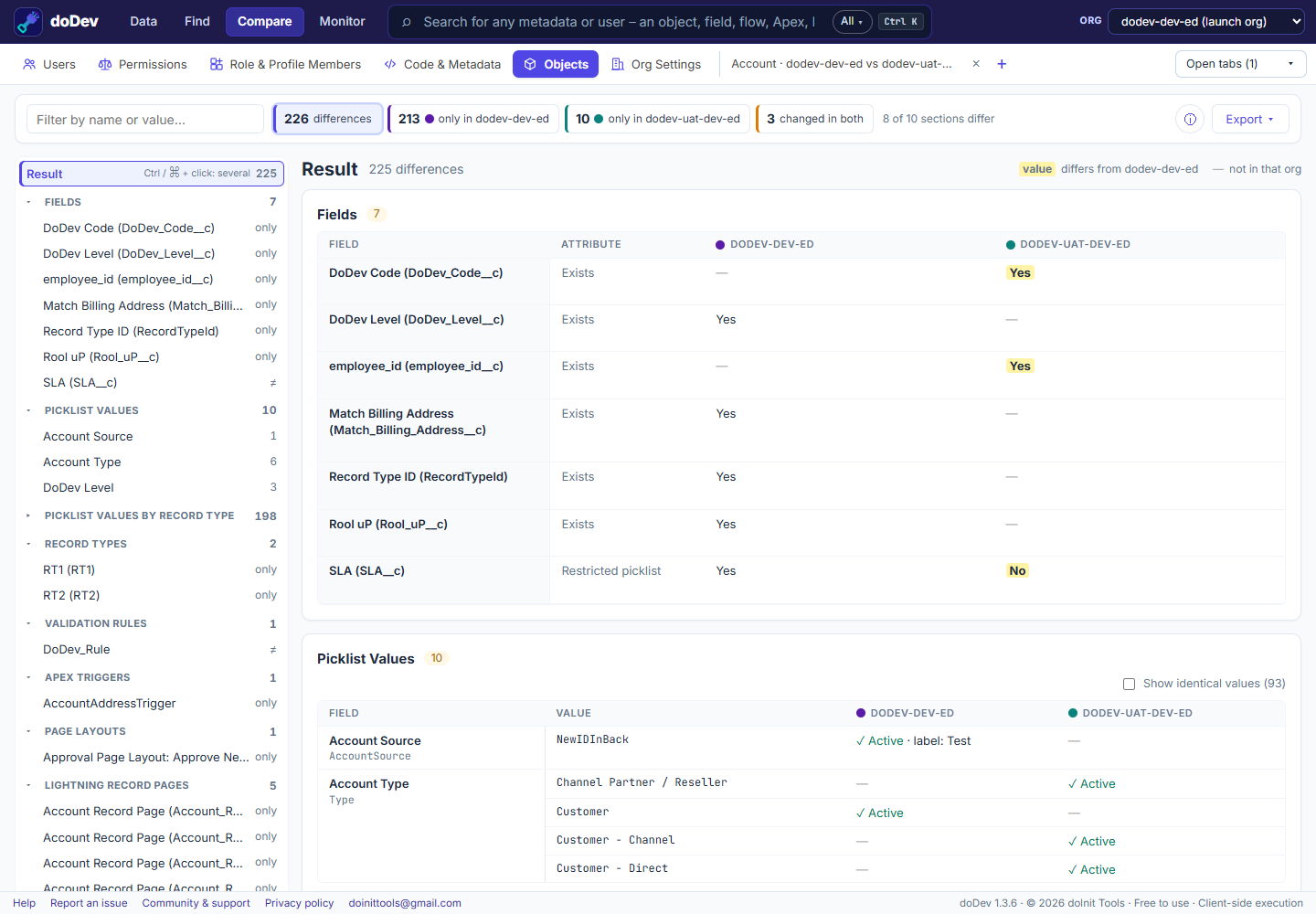
Compare it with doDev
- Install doDev and log into both orgs in the same browser.
- Open doDev and go to Compare → Objects.
- Type the object, e.g. Account, and pick the two orgs.
- Click Compare object.
You get, with the differences highlighted:
- Object settings and every field attribute – type, length, required, unique, formula, default, help text and more.
- Picklist values, also per record type.
- Record types, validation rules, triggers, record-triggered flows, page layouts and Lightning pages.
- A tree of all differences by section, and the sections that are identical in both orgs.
From an object’s page in Find Any Metadata, ⇄ Compare with opens this comparison straight away.
Doing it without a tool
Open the object in Object Manager in both orgs and compare each field’s settings, or retrieve the object with the Salesforce CLI from both orgs and compare the .object-meta.xml and field files.
More how-to guides: all guides · doDev help